Fixing Failed Scheduled Exports
Written By El
Last updated 6 days ago
When scheduled exports fail, you will receive an email with an error code and usually that comes with a brief explanation for why it failed. Take note of this error code in case you need to share it with our team.
Types of Issues
Timeout
If the issue is "timeout" related than likely there was an issue with the connection and you can either trigger the scheduled export manually or simply wait until the export is triggered again according to the schedule you have set up. This can be caused by temporary cloud infrastructure or region-specific incidents (such as backlog delays in specific AWS or Azure zones) which can temporarily halt scheduled task execution or underlying warehouse timeouts, revoked user permissions, or email/Slack delivery failures.
Error: Most recent scheduled export run failed
This vague message typically means there may have been a change in the elements on the dashboard and they can no longer be referenced for exporting. This would break your scheduled export if it references an element or filter that was deleted. Our team tries to preserve existing elements when updating the dashboards so that this doesn't happen. However, when significant dashboard upgrades occur, as in September 2026, then this can be unavoidable. To fix this issue, you must log into the Prodify Client portal and access the dashboard where you have set up the scheduled export. Follow these steps:
Initiate the scheduled export modal by clicking on any element's "more" button, then navigate to "Exports" and slide over to "Scheduled Exports".
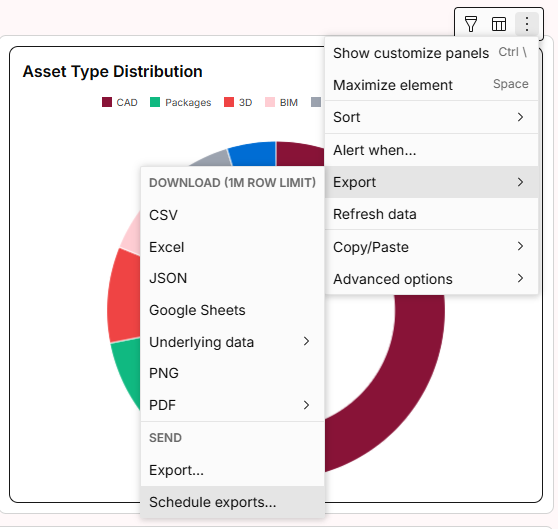
When the Scheduled Export modal opens, scroll to the bottom of the modal and hit "Cancel". This will open a dialog of all your Scheduled Exports. From there you can select a specific export (the one which failed) and select "Edit" from the options under the "Actions" button.
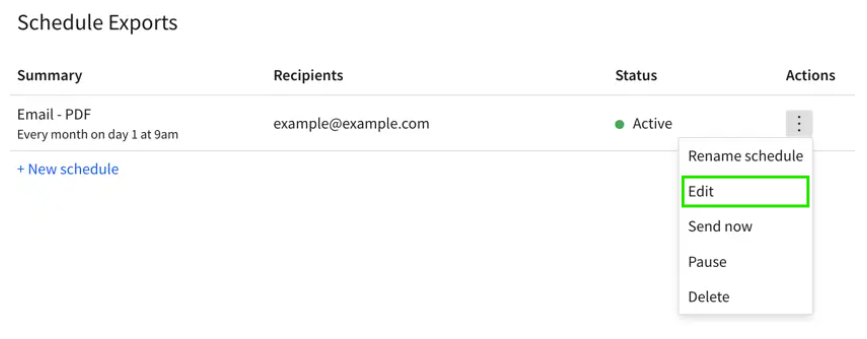
This will open the export set up modal again and any elements or filters which are failing will be clearly flagged, click on them and select new elements or filters which suite your needs (any deleted elements have likely been replaced by similarly named elements which should be easy to identify. Alternatively, you may simply delete your existing exports and start fresh from the elements you are interested in directly from the dashboard.