Downloading Assets
Download Assets from the Form View, Asset Table, or Asset Gallery.
Written By El
Last updated 3 months ago
Downloading Assets in the Form View
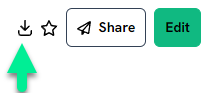
The option to download is at the top right when viewing the asset in the Form View. The available options are Download, Favorite, Share, or Edit. Click the download icon to start the download. A dialogue box will appear to confirm the successful download of the asset.
Downloading Assets from the Asset Table
To download multiple assets, use the checkboxes to select the assets you want to download. Click Download and a dialogue box will appear so you can select to download the Asset, the Asset Data, or both.
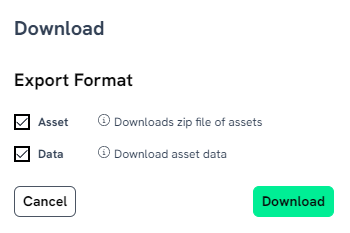
Downloading data will provide a comma-separated value file (CSV) containing the asset's attributes.
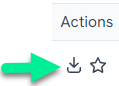
To download a single asset, click the download icon in the "Actions" column and the asset will download.
Downloading from the Asset Gallery
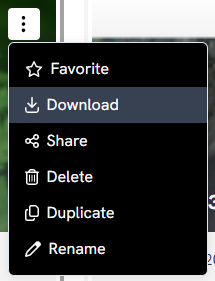
Assets can be downloaded from the Gallery using the checkboxes, or the Download icon. To access the download icon for a single asset, click on the three dots at the top right of the desired gallery image. This will bring up a dialogue box that includes the option to download the file.
To download multiple assets, click the assets using checkboxes and click Download from the menu at the top of the Gallery.
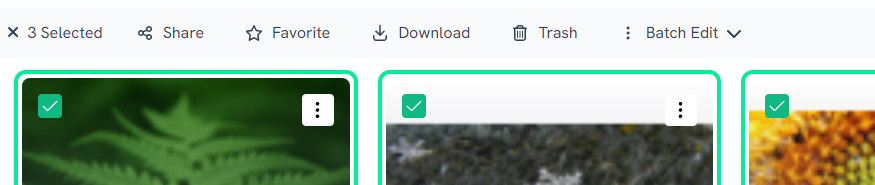
A dialogue box will appear so you can select to download the Asset or the Asset Data, or both.
Downloading from Projects
Note for Projects with embed links: The Download All button is not displayed when a project contains only embedded video links or no downloadable media files. When downloading a project that contains both file assets and embed links, the confirmation dialog will read: "You will be downloading a ZIP file containing all media files added to this project, excluding external links." Embedded video links are not included in the ZIP download.