Trashing Assets
Delete Assets and Recover Assets
Written By El
Last updated 5 months ago
Deleting Assets from the Asset Table
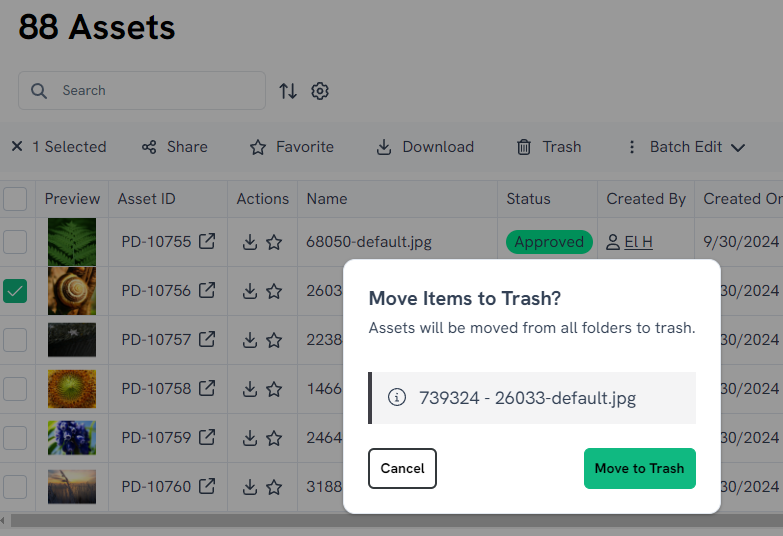
Select the file you want to delete using the check box. This will cause a menu to appear above the Asset Table. Select “Trash” to delete the checked files. To delete multiple assets, check multiple boxes then select “Trash” to move the assets to the Trash.
Deleting Assets from the Gallery View
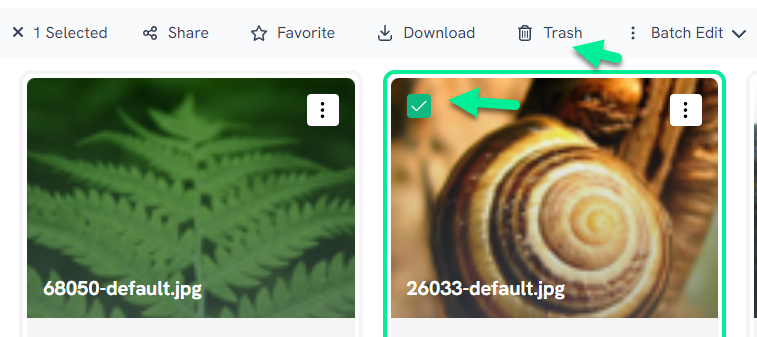
Select the file you want to delete using the check box. This will cause a menu to appear at the top of the Gallery. Select “Trash” to delete checked files. To delete multiple assets, check multiple boxes then select “Trash” to move the assets to the Trash.
Accessing the Trash to Permanently Delete or Restore Assets
Access the Trash using the sidebar menu on the left.

You can navigate and browse the contents of Trash.

Select Folders, Assets, Products, Product Variants, Collections, or Projects to Restore or Permanently delete.

